Upscaling and Finishing: The Post-Processing Pass on AI Art
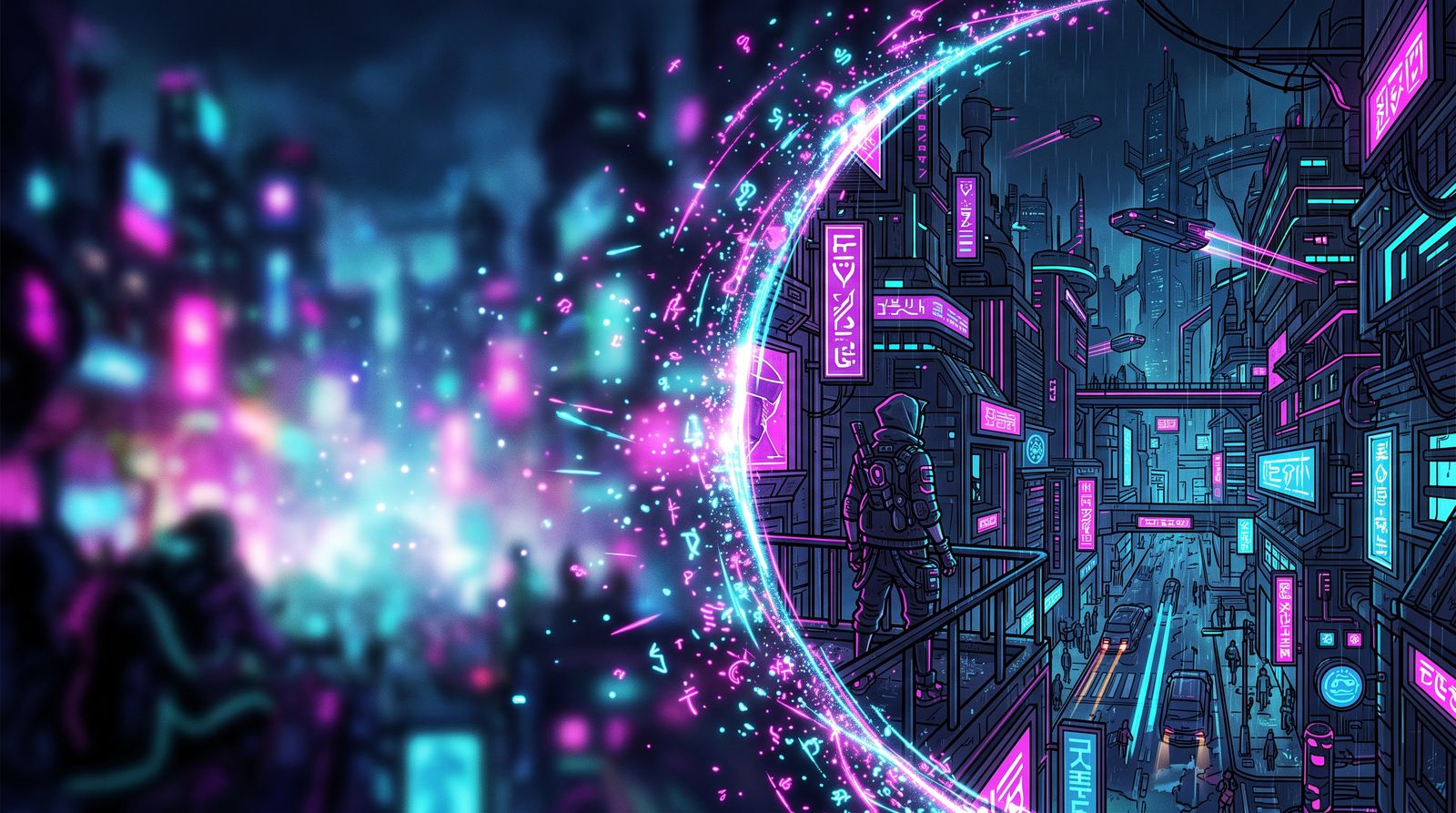
There is a habit among newer creators of treating the moment of generation as the finish line. The model produces an image, it looks good on screen, and the work is declared done. But professionals treat the raw generation the way a photographer treats a RAW file: as a starting point, not a final product. The finishing pass is where good becomes polished, and it is the least glamorous and most valuable part of the whole process.
Finishing covers everything that happens after the base image exists: upscaling to a usable resolution, repairing the small artifacts the model always leaves behind, grading the color, and making selective edits that the prompt could never have produced precisely. Skipping it is the difference between an image that impresses at thumbnail size and one that holds up when someone looks closely.
Upscaling Is Not Just Making It Bigger
A naive resize stretches existing pixels and produces a soft, mushy result. A real upscaler reconstructs detail, synthesizing plausible texture, edges, and fine structure that were not present in the smaller image. This is why a properly upscaled generation can look sharper and more detailed than the original, not merely larger.
The catch is that upscalers can also hallucinate. Push the strength too high and skin turns plastic, fabric grows fake weave patterns, and faces develop an over-processed sheen. The goal is enhancement that respects the original, not a second generation pass that invents a different image.
- Match the upscaler to the content: photographic upscalers for realism, different models for illustration and anime
- Use a moderate denoise or creativity setting; high values reinvent the image instead of refining it
- Upscale once to your target size rather than repeatedly, which compounds artifacts
- Check faces, hands, and text at full zoom after upscaling, since these are where hallucination shows first

Repair the Artifacts the Model Always Leaves
Even an excellent generation tends to carry small flaws: a slightly malformed ear, a stray finger, a smear where two objects meet, garbled text on a sign. These are easy to miss on the first proud glance and impossible to miss once someone else points them out. The finishing pass is where you hunt them down deliberately.
Inpainting is the precision tool here. Rather than regenerating the whole image and gambling away the parts you liked, you mask only the broken region and regenerate that area alone. This keeps your good composition intact while fixing the one eye, the one hand, the one awkward background object. It is slower than rerolling, and far more reliable.
- Scan systematically: eyes, then hands, then edges where objects overlap, then any text
- Inpaint at a generous mask size; too tight a mask creates a visible seam
- Fix one region per pass and re-evaluate, rather than masking everything at once
- For stubborn text, it is often cleaner to remove it entirely than to fight the model into spelling

Color Grading Pulls the Image Together
Raw generations often have slightly muddy contrast, an inconsistent color cast, or highlights that clip. A color grade is the final unifying step that gives a set of images a cohesive look and pushes the mood you intended. This is ordinary photo-editing work, and the same instincts apply.
- Set the black and white points first so the image uses its full tonal range
- Adjust contrast and clarity to taste, but stop before the image starts to look crunchy
- Push a subtle color grade (warm shadows, cool highlights, or the reverse) for a cinematic feel
- Apply a consistent grade across a series so the images read as one body of work
A light touch wins. The most common over-correction is cranking saturation and contrast until the image screams, which only amplifies the artificial look you are trying to escape. Grade until the image feels intentional, then stop one step earlier than you want to.
A Repeatable Finishing Checklist
Consistency comes from process. Run every keeper through the same sequence so nothing slips, and so your output looks like it came from one careful hand rather than from luck.
- Cull first: pick the single best base generation before investing finishing time in any of them
- Repair artifacts with inpainting while the image is still at base resolution
- Upscale to target size with a conservative strength setting
- Inspect at full zoom and patch anything the upscaler introduced
- Color grade for mood and consistency across the set
- Export at the right format and resolution for where it will actually live
None of this is flashy, and that is exactly the point. The generation gets the attention, but the finishing pass earns the respect. Build it into your workflow as a non-negotiable step, and the gap between your work and the work you admire will quietly close.
Frequently asked questions
What is the difference between upscaling and resizing an AI image?
A plain resize stretches existing pixels and produces a soft, mushy result. A real upscaler reconstructs detail by synthesizing plausible texture and edges that were not in the smaller image. Done well, the upscaled image can look sharper than the original, not just larger.
Why does my upscaled AI image look plastic or fake?
The upscaler's strength or creativity setting is likely too high, so it is reinventing the image instead of refining it. Use a moderate setting, upscale once to your target size rather than repeatedly, and match the upscaler to the content type. Then check faces, hands and text at full zoom.
How do I fix small flaws like bad hands or garbled text in AI art?
Use inpainting: mask only the broken region and regenerate that area while keeping the rest of the image. Use a generous mask to avoid visible seams and fix one region per pass. For stubborn text, removing it entirely is often cleaner than forcing the model to spell.
In what order should I finish an AI image?
Pick the single best generation first, repair artifacts with inpainting at base resolution, then upscale with a conservative setting. Inspect at full zoom and patch anything the upscaler introduced, then color grade. Finally export in the format and resolution suited to where the image will be shown.